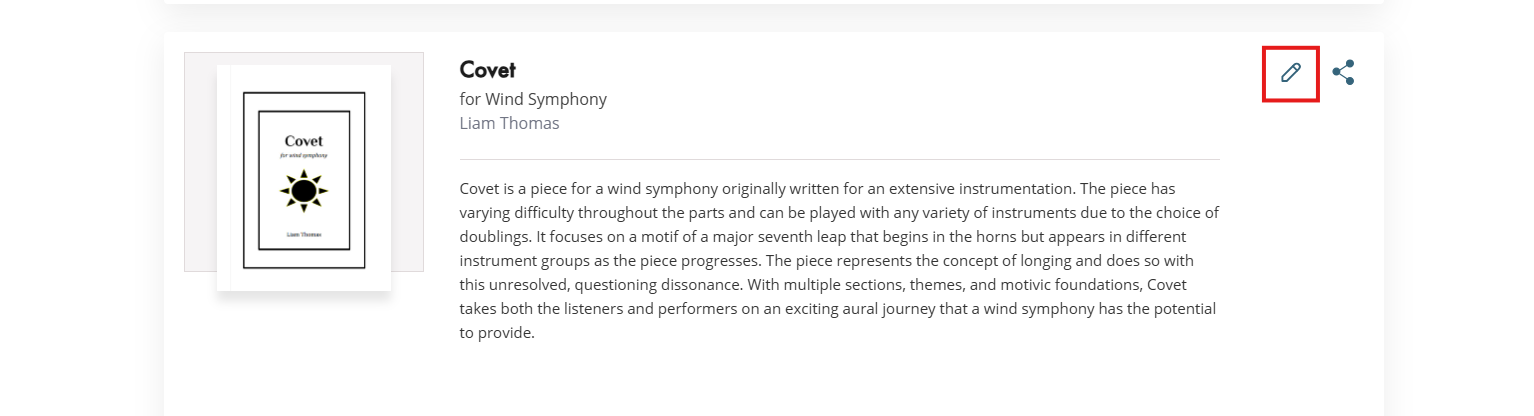
This is the master FAQ support article for the self-service product metadata page accessible through the My Score experience. It can be accessed through the "pencil icon" on any available products under "Library > Catalog."
Please note: Due to the launch of this tool, we will no longer accept ticket/email requests for description edits or any other edits that pertain to metadata.
For further information about updating files/media for available products, please see our support article titled How Do I Edit the Files/Assets (PDFs, JPGs, MP3s) of My Composition?
TABLE OF CONTENTS
- How can I edit information on my Product?
- What details can I edit on my Products?
- How do I edit the Product Description (Annotation)?
- How can I update my Title?
- How can I update the Composer/Arranger on my product?
- How can I update the Lyricist or add a new one on my product?
- Why can’t I change the Composition Type on my product?
- How can I update my Product identification numbers?
- How can I update my Product Descriptions?
- How do I update the Style of my item?
- How do I update the Format of my item?
- How do I update the Voicing of my item?
- How can I change the difficulty Level of my item?
- How can I add or update a Preview Video for my item?
- How can I preview the YouTube Video attached to my item?
- How can I change the Price of my item?
- Why are there restrictions set on Price updates?
- What does the “Active” toggle do to my product?
- What does the “Unpublish” button do to my product?
- How do I change the Minimum Quantity on my item?
How can I edit information on my Product?
- From the Catalog page
- Click the Pencil Icon below the product you want to edit
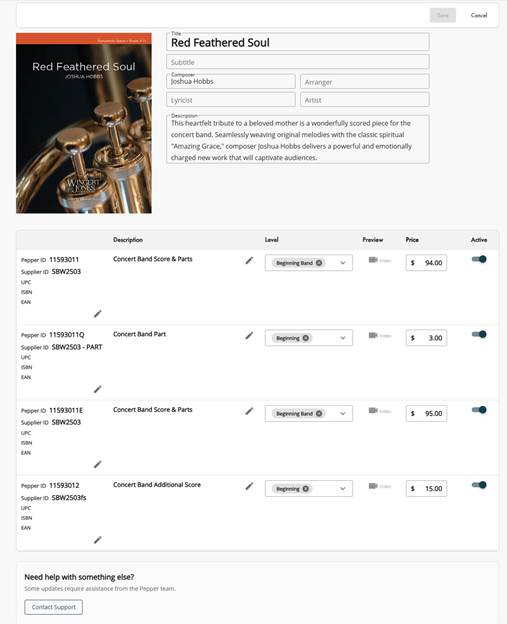
- This will bring you to your product metadata page
- On this page you can edit most of the fields affiliated with your product.
- Click Save in the upper right corner.
- Confirm or cancel to approve your changes
- Your change will be live on your product within 24-48 hours.
What details can I edit on my Products?
Using our Edit feature, you can change the following Details:
- Title
- Subtitle
- Composer
- Arranger
- Lyricist
- Artist
- Annotation
- Supplier ID
- UPC
- ISBN
- EAN
- Format
- Voicing
- Style
- Level
- Preview Video (Youtube only)
- Price
- Toggle Active/Inactive
How do I edit the Product Description (Annotation)?
- From the Catalog page
- Click the Pencil Icon below the product you want to edit
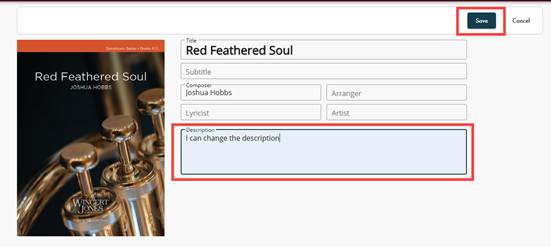
- Click into the description field
- Enter new text
- Save
- Publisher Changes? Confirm to Accept or Cancel to return to the edit page
Why can’t I edit the Product Description (Annotation)?
If your item has been reviewed by our Product Specialists, J.W. Pepper will create a new Product Description. If this is the case, you will be unable to update this. You’ll know the Product Description (Annotation) can’t be edited if the Description field is locked, meaning you can’t place your cursor in it or type any changes.
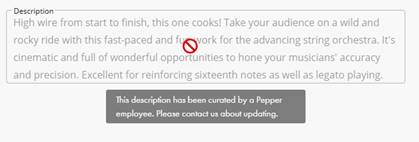
You can request edits to these Product Descriptions by using the Contact Support widget on your product. These will be reviewed by our Product Specialists, and if approved your description will be updated.
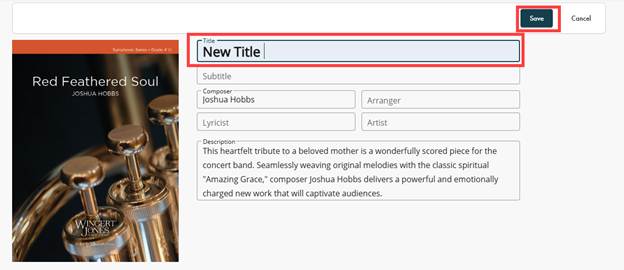
How can I update my Title?
- From the Catalog page
- Click the Pencil Icon below the product you want to edit
- Click into the Title Field
- Enter new text
- Save
- Publisher Changes? Confirm to Accept or Cancel to return to the edit page
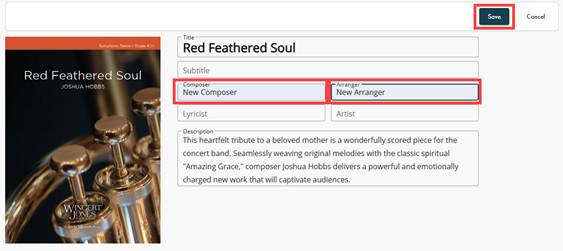
How can I update the Composer/Arranger on my product?
- From the Catalog page
- Click the Pencil Icon below the product you want to edit
- Click into the Composer or Arranger field
- Enter new text
- If you need to list multiple names, separate names with commas. For two names, use “and” (e.g., Name and Name). For three or more, use commas and “and” before the last name (e.g., Name, Name, and Name).
- Save
- Publisher Changes? Confirm to Accept or Cancel to return to the edit page
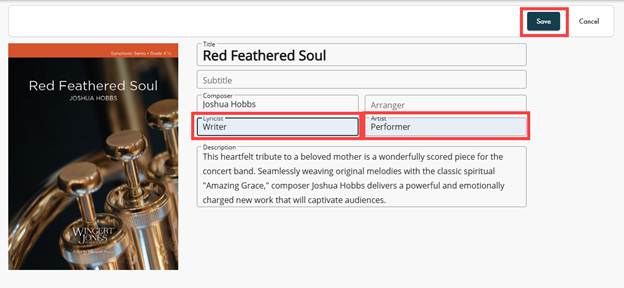
How can I update the Lyricist or add a new one on my product?
- From the Catalog page
- Click the Pencil Icon below the product you want to edit
- Click into the Lyricist or Artist field
- Enter new text
- If you need to list multiple names, separate names with commas. For two names, use “and” (e.g., Name and Name). For three or more, use commas and “and” before the last name (e.g., Name, Name, and Name).
- Save
- Publisher Changes? Confirm to Accept or Cancel to return to the edit page
Why can’t I change the Composition Type on my product?
The Composition Type is set when your item is created and allows us to set the parameters of your item, web site and catalog distinction. If the Composition Type is incorrect please reach out using Contact Support or submitting the item as a New Product.
How can I update my Product identification numbers?
- From the Catalog page
- Click the Pencil Icon below the product you want to edit
- Under the Pepper ID
- Click the Pencil Icon
- From here you can enter a new Supplier ID, UPC, ISBN or EAN.
- Save
- Publisher Changes? Confirm to Accept or Cancel to return to the edit page
How can I update my Product Descriptions?
- From the Catalog page
- Click the Pencil Icon below the product you want to edit
- Click the pencil Icon to the right of the description
- From here you can update the Format, Voicing and Style
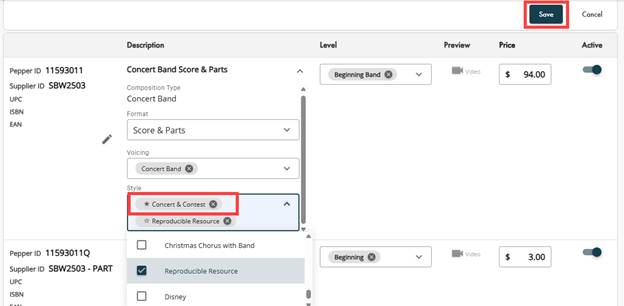
How do I update the Style of my item?
- From the Catalog page
- Click the Pencil Icon below the product you want to edit
- Click the pencil Icon to the right of the description
- Using the Style Dropdown
- You can choose up to four different styles per item.
- Indicate the Primary style by clicking the star to the left of the item in the list.
- Save
- Publisher Changes? Confirm to Accept or Cancel to return to the edit page
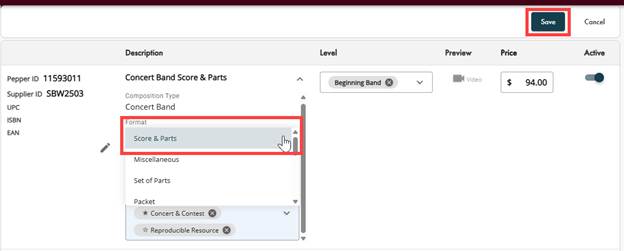
How do I update the Format of my item?
- From the Catalog page
- Click the Pencil Icon below the product you want to edit
- Under the Pepper ID
- Click the Pencil Icon
- Using the Format Dropdown
- You can choose one format option
- Save
- Publisher Changes? Confirm to Accept or Cancel to return to the edit page
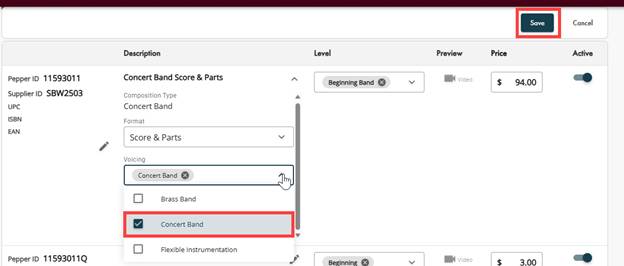
How do I update the Voicing of my item?
- From the Catalog page
- Click the Pencil Icon below the product you want to edit
- Click the pencil Icon to the right of the description
- Using the Voicing Dropdown
- You can choose up to four different voicings per item.
- Indicate the Primary voicing by clicking the star to the left of the item in the list.
- Save
- Publisher Changes? Confirm to Accept or Cancel to return to the edit page
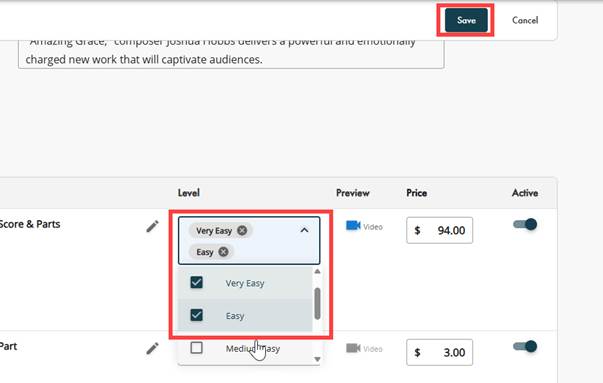
How can I change the difficulty Level of my item?
- From the Catalog page
- Click the Pencil Icon below the product you want to edit
- Using the dropdown under Level you can choose your difficulty
- You can choose up to two difficulties
- More than one difficulty will be shown as a difficulty range on our website
- You can choose up to two difficulties
How can I add or update a Preview Video for my item?
- From the Catalog page
- Click the Pencil Icon below the product you want to edit
- Click the Video Icon below preview
- If the Icon is Blue a video link is attached
- If the Icon is Gray there is no video link attached
- Enter your YouTube URL. To generate the proper URL for your YouTube video for our system, please see our support article How do I add a Video Clip to My Product? : My Score
- Save
- Publisher Changes? Confirm to Accept or Cancel to return to the edit page
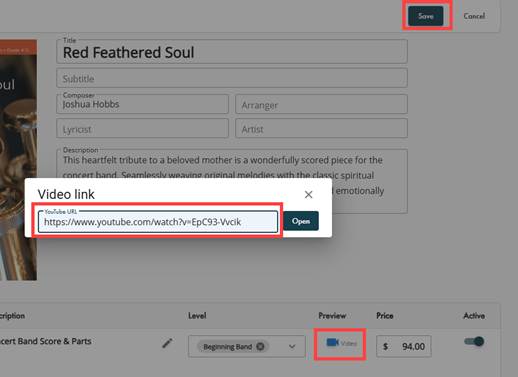
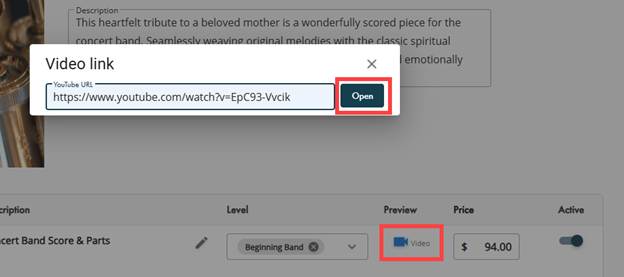
How can I preview the YouTube Video attached to my item?
- If your preview video icon is Blue a video link is present
- Click the video icon
- To the left of the link click open
- A new tab will open playing the attached video
How can I change the Price of my item?
- From the Catalog page
- Click the Pencil Icon below the product you want to edit
- Under Price adjust the List Price of your Product
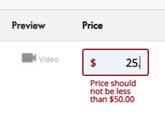
- Price Minimums have been set for products based on product type
- Extreme price increases will be reviewed by our product team to ensure mistakes have not been made
- Save
- Publisher Changes? Confirm to Accept or Cancel to return to the edit pag
Why are there restrictions set on Price updates?
We set price minimums on our products to ensure pricing stays within reasonable, industry-standard ranges. Minimums help keep the price field from functioning like a free-text entry, which reduces errors and the need for follow-up, and they help prevent undercutting standard pricing simply for a marketing advantage.
- Price Minimums
- Choral Music -$2.30
- Large Choral Works -$2.30
- Vocal Solo & Collections -$5.00
- Concert Band -$50.00
- Marching Band -$50.00
- Jazz Band -$25.00
- String Orchestra -$45.00
- Full Orchestra - $60.00
- Additional Scores - $5.00
- Replacement Parts -$3.00
- Solo & Ensemble -$5.00
- Handbell -$5.00
- Piano Sheet Music -$5.00
- Organ -$5.00
- Guitar and Fretted -$5.00
- Method Books -$5.00
If you enter a price below the minimum, you will be alerted with the minimum price.
What does the “Active” toggle do to my product?
The Active toggle allows you to prevent items from being shown on our website.
- Active items will be toggled to the left

- Inactive items will be toggled to the right

- Items will be shown in My Score as they are currently listed in our internal system.
- Inactivating an item will not permanently remove it from your catalog or our internal systems, if you wish to mark an item as permanently out of print please use the contact support option at the bottom of your item.
- Save
- Publisher Changes? Confirm to Accept or Cancel to return to the edit page
What does the “Unpublish” button do to my product?

The “Unpublish” button will completely remove a product from your My Score library and the J.W. Pepper website. This action cannot be undone and is meant for circumstances where you no longer want a product listed with J.W. Pepper. The following prompt will appear for you to confirm that your action is intended:
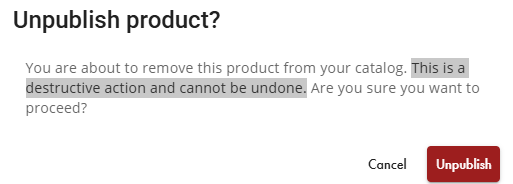
To bring back any products that have been unpublished will require a full upload for a new product and it will be as if the title never was listed on the website.
How do I change the Minimum Quantity on my item?
Minimum quantity is available on choral products and lets you set the minimum number of copies a customer must purchase.
- From the Catalog page,
- Click the Pencil icon below the product you want to edit.
- Under Min. Quantity, use the dropdown to select the minimum selling quantity for your item.
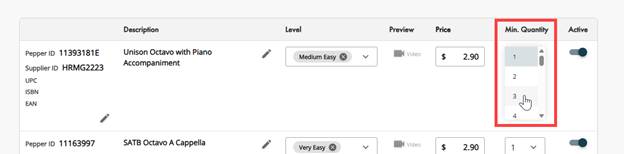
- Click Save.
- Publisher Changes? Confirm to Accept or Cancel to return to the edit page
Was this article helpful?
That’s Great!
Thank you for your feedback
Sorry! We couldn't be helpful
Thank you for your feedback
Feedback sent
We appreciate your effort and will try to fix the article