- Navigate to your Catalog Page
- Locate the item you would like to update in your catalog
- Select the Edit button in the upper right corner

- In the Sku line under Preview Select Media
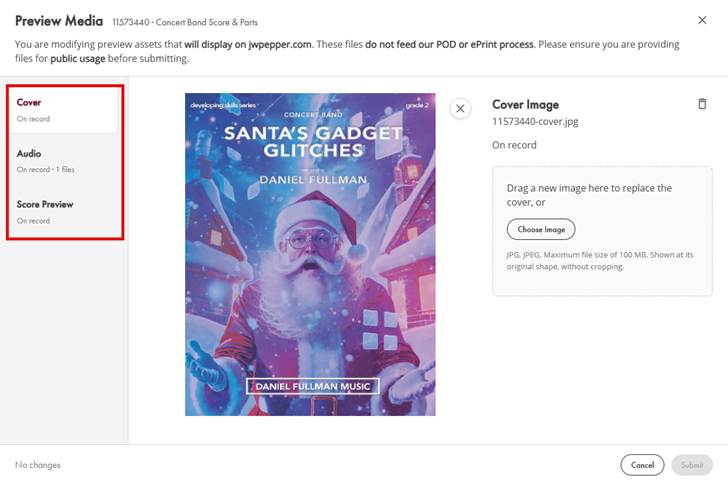
- This will open a new window.

- On the left toggle between Cover, Audio, and Score Preview.
- For Cover and Score Preview:
- Drag and drop your file into the upload area or select Choose Image or Choose PDF to select from a destination point on your computer.
- Only one file can be uploaded for Cover or Score Preview
- Drag and drop your file into the upload area or select Choose Image or Choose PDF to select from a destination point on your computer.
- For Audio:
- Select Add Files
- Select the destination point where your audio files are stored on your computer.
- Select one or more MP3 files and open.
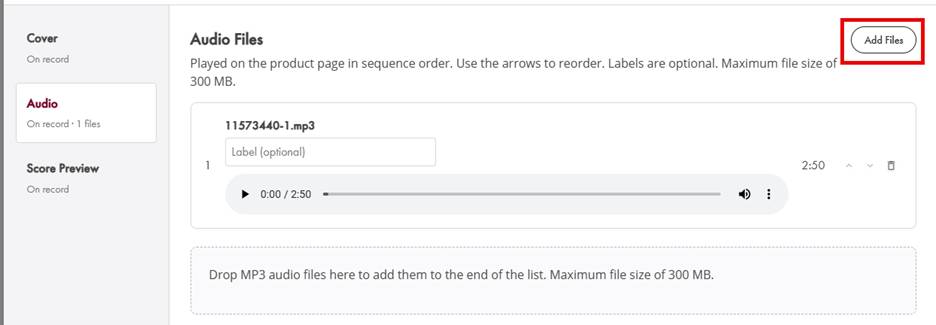
On the audio page you have the ability to:
- Add a label to each audio file.
- Click into Label field and enter label.
- Adjust the order of your tracks.
- Click the up or down arrows to the right of the track.
- Delete unwanted tracks.
- Click the trashcan to the right of the track.
- Confirm your deletion
- Click the trashcan to the right of the track.
- After you have completed all of your Asset updates for that product Sku choose Submit.

You only have to submit once to update all of your changed assets.
Was this article helpful?
That’s Great!
Thank you for your feedback
Sorry! We couldn't be helpful
Thank you for your feedback
Feedback sent
We appreciate your effort and will try to fix the article